Word comes with a gallery of cover pages, which you can insert easily to make your document look more professional.
To insert a cover page
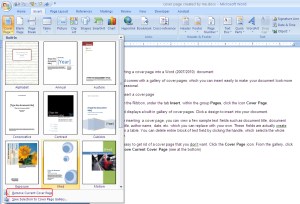
From the Ribbon, under the tab Insert, within the group Pages, click the icon Cover Page.
Word displays a built in gallery of cover pages. Click a design to insert into your document.
After inserting a cover page, you can view a few sample text fields such as document title, document subtitle, author name, date, etc. which you can replace with your own.
These fields are actually created within a table. You can delete entire block of text field by clicking the table handle, which selects the whole table. Then you can enter your own.
It is easy to get rid of a cover page that you don’t want. Click the Cover Page icon. From the gallery, click Remove Current Cover Page (see at the bottom)

 MS Word Know How