As we know, converting a Word document to PDF has many benefits including cross-platform compatibility of PDF, reduced file size, protection, etc.
In Word environment, we convert a document to PDF by using the Save As option. In this process, resultant PDF would have a relatively lower size than the parent document. If you find PDF size still higher to publish online or email, there is an option that would considerably reduce the PDF file size. Here it is how.
- Open the Word document, which you are going to covert to PDF.
- Click the Office button and then point to Save As.
- From the sub-menu, click the option PDF or XPS. The Publish as PDF or XPS dialog box appears.
- From the bottom of the dialog box,
- Enter file name in the File Name field
- Select the Save as type as PDF
- Under the heading Optimized For, click the option Minimum size (publishing online)
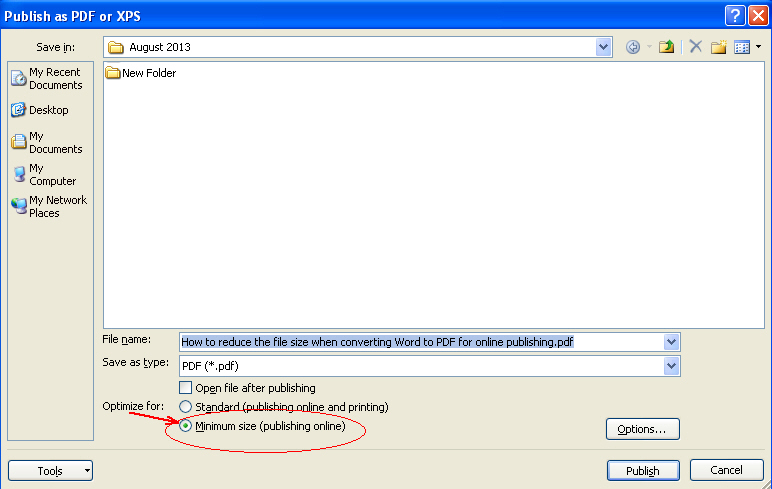
5. Click Publish. You are done.

 MS Word Know How
Re step 2, where is the Office button? I have opened the document in Word.
Very thank you, it’s work to reduce my PDF file.
Thank you!!! This worked for what I needed. My file was reduced considerably. I copied and pasted a PDF of my transcript into a word document then saved it as a PDF. The transcript was originally scanned as a PDF file however the document was much too large.