How to enable the Developer tab in Word?

The Developer tab needs to be enabled in the Ribbon if you want to use the ActiveX controls, record Macros, code in Visual Basic, write XML commands, run macros, enforce document protection, etc. in Word. By default, the Developer tab is not made available in the Ribbon. You can enable it from Word Options.

In Word 2007

  1. Click the Office button and then click the Word Options button from the bottom of the drop-down list. The Word Options dialog box appears.
  2. From the Word Options dialog box, click the category Popular from the category list pane on the left hand side.
  3. On the right hand side, under the section heading “Top options for working with Word section”, select the check box for the option “Show developer tab in the ribbon”.
  4. Click OK.

In Word 2010

  1. Click the File tab. A drop-down list appears.
  2. From the drop-down list, click Options. The Word Options dialog box appears.
  3. On the dialog box, click category Customize Ribbon from the category list.
  4. On the right-hand-side pane, under Main Tabs, select the Developer check box.


How to delete an entry from AutoCorrect?

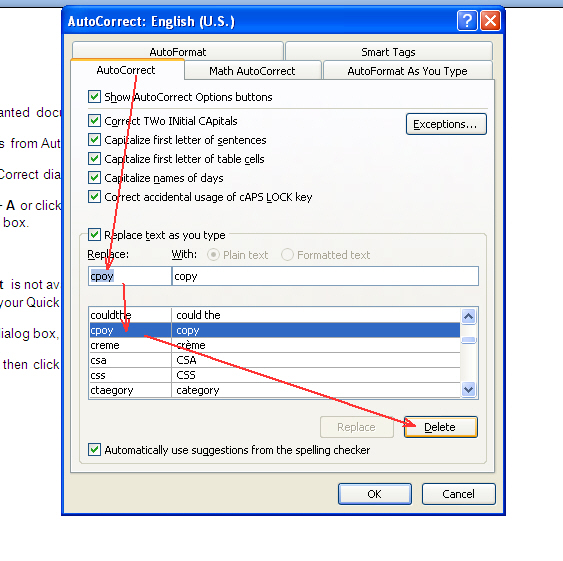
To display the AutoCorrect dialog box, press Alt + T + A or click AutoCorrect from the Quick Access Toolbar. Word displays the AutoCorrect dialog box.

NoteIf AutoCorrect is not available in your Quick Access Toolbar, read the following article to add AutoCorrect to your Quick Access Toolbar.

https://wordknowhow.wordpress.com/2013/05/14/how-to-customize-the-quick-access-toolbar-in-word-2007/?preview=true&preview_id=319&preview_nonce=f77d720900&post_format=standard

https://wordknowhow.wordpress.com/2013/06/06/how-to-use-autocorrect-feature-in-word/?preview=true&preview_id=442&preview_nonce=786767bcc8&post_format=standard

On the AutoCorrect dialog box, in the Replace field, type the entry that you want to delete.

Untitled

Select the entry and then click the Delete button. You are done.

Know Document Map in Word

What is a document map?

Document Map comes handy browsing large documents in Word. The feature creates a list of all headings and sub headings and displays in a separate pane.

How does Document Map help you?

You can quickly jump from one heading/subheading to another. Saves you from tireless browsing to get to a specific section.

How does Document Map work?

Word creates Document Map based on the heading styles applied in the document. Therefore, use built-in heading styles.

Note: To know how to apply built-in heading styles in your Word document, read the following article:

https://wordknowhow.wordpress.com/2013/05/20/how-to-fix-multilevel-list-in-word/

When you click an entity from the Map, Word brings up the corresponding section of the document to the top.

How can you view Document Map?

From the Word Ribbon, click tab menu View.

From the group Show/Hide, click select check box Document Map. Word displays the Document Map pane on the left.

Untitled

You can expand a heading level in Document Map to view its sub headings or collapse to hide all. Right-click anywhere in the Document Map pane, select a heading level. Document Map pane displays headings till that level only, e.g. if you select heading level 5, Document Map pane will display heading 1 through heading 5.

Untitled

How will you fix Document Map to remove unwanted entries?

Click the unwanted entry from the document map. Word places the cursor at the beginning of the corresponding heading/body text in the document.

Now, select the heading/body text and then right-click.

From the right-click menu, click Paragraph. The Paragraph dialog box appears.

On the Paragraph dialog box, under the tab Indent and Spacing and within section General, view the field Outline Level with a drop-down list.

Now, select the outline level as Body Text from the drop-down list. The content will no more be part of Document Map.


How to reduce file size when converting Word to PDF for online publishing?

As we know, converting a Word document to PDF has many benefits including cross-platform compatibility of PDF, reduced file size, protection, etc.

In Word environment, we convert a document to PDF by using the Save As option. In this process, resultant PDF would have a relatively lower size than the parent document. If you find PDF size still higher to publish online or email, there is an option that would considerably reduce the PDF file size. Here it is how.

  1. Open the Word document, which you are going to covert to PDF.
  2. Click the Office button and then point to Save As.
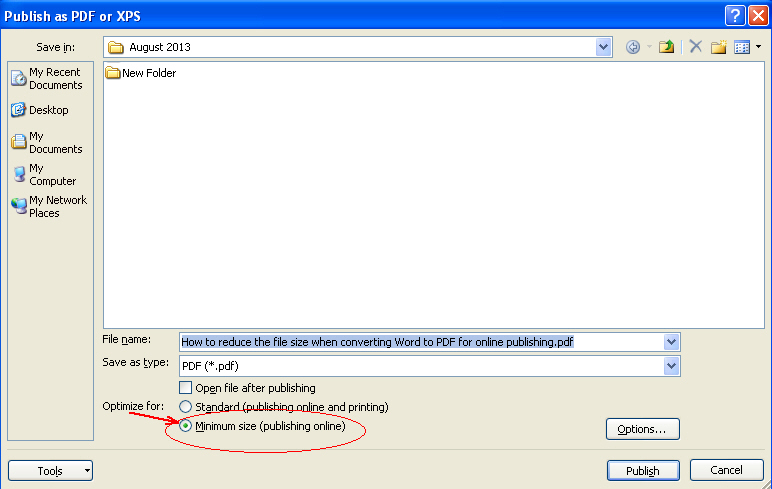
  3. From the sub-menu, click the option PDF or XPS. The Publish as PDF or XPS dialog box appears.
  4. From the bottom of the dialog box,
    1. Enter file name in the File Name field
    2. Select the Save as type as PDF
    3. Under the heading Optimized For, click the option Minimum size (publishing online)

Untitled

5.    Click Publish. You are done.

How to use Building Block Gallery in Word

Word 2007 & 2010 provides a gallery of style blocks known as Building Blocks Organizer. You can use these style blocks to create professional looking documents. The gallery also provides an option to store your own style blocks for future use. This saves your time and effort.

To access the Building Blocks Organizer

1.    On the Ribbon, under the tab Insert and within the group Text, click Quick Parts. A drop-down menu appears.

2.    From the menu, click Building Blocks Organizer. The building blocks gallery pops up.


To insert a style block

Select a block from the list, click  Insert.


To store your own blocks to Building Blocks Organizer

1.   Select the style block.

2.   On the Ribbon, under the tab Insert and within the group Text, click Quick Parts. A drop-down menu appears.

3.   From the bottom of the menu, click the Save Selection to Quick Part Gallery option. Quick part is added to the organizer.

You can sort the gallery list by clicking the column heading (i.e. Name).


How to copy content from different places and paste as a group at one one place in Word

This is a very useful, but lesser known feature in Word, which enables you to copy various types of content (texts/graphics) from different documents and paste all of them as a group at one place. The feature is called Spike. This is different from Clipboard, which only remembers the last copied content.

How to use Spike

  1. Open a Word document, which contains text, graphics, tables, etc.
  2. Select a text paragraph/an image/table and then press CTRL+F3. The paragraph/image/table would be deleted and copied to the Spike. (If you want the paragraph/image/table to remain intact in the original location press CTRL+z to undo)
  3. Repeat step 2 to copy the next text/images/table to Spike, and so on.
  4. Now, place mouse cursor at the insertion point and do one of the following:

 a.    Press CTRL+Shift+F3. All the copied contents from step 2 and 3 are pasted at the insertion position. This way you can paste content only once. Spike will be empty after single paste.

 b.    If you do not want to lose the copied content from Spike and paste the copied content multiple times, then type “spike” and then press F3 every time to paste. You can paste the copied content as many times as you want. You can keep adding content to Spike as well 🙂 Newly copied content would be added at the end of the last copied content. Again, type “spike” and then press F3.

Note: Selecting a table to Spike is a bit tricky. While selecting a table, along with the table, select the next line in the document too.

How to fill a Word document with random texts


This one is a nice trick to fill a Word document with random example texts. Use the following function:

     =rand (number of paragraphs, number of complete lines)

For example:

=rand (2, 2)

The above formula would create two paragraphs with two complete lines as shown below.

untitled

If you read the texts, you would realize that these are Word help topics.

How to change the default save location in Word 2007


Word 2007 saves your files in the default location: “C:\Documents and Settings\user name\My Documents”. To change this save location, follow the below procedure:

1.   Click the Office button.

2.   From the drop-down list, click the Word Options button. The Word Options dialog box appears.

3.   From the category list on the left, click Save.

4.   From the pane on the right had side, under the section Save Documents, the field Default File Location shows the current save location.

5.   Click the adjacent Browse button to specify a new save location.

6.   Click OK. See below image.

untitled

Different ways to protect a Word document from unintended modification?

1)     Mark a document as Final (soft protection)

You can mark a final version of a document as Final to protect it from unintentional changes to the content.

To mark a document as Final

  1. Click the Office button
  2. Point to Prepare.
  3. Click Mark as Final.

This feature disables all the tabs in the Ribbon. Typing in the document is disabled as well.

Mark as Final is not a strong security feature to protect a document, as the restriction can be removed easily by clicking again on Mark as Final.

untitled

2)     Make a document read-only (soft protection)

You can make a document read-only to prevent accidental modification of the content.

To make a document read-only

  1. Right-click the document. The Properties dialog box appears.
  2. In the dialog box, under the tab General, click the check box Read-only.

OR

You can double-click the document by holding the ALT key to the open the Properties dialog box.

Now, if you open the document, you can view Read-only marked along with the document name in the title bar. All the tabs in the Ribbon are disabled.

Again, this is not a strong security feature, as anyone can remove restrictions by deselecting the Read-only check box from the right-click menu.

untitled

3)     Protect Document (strong protection)

The Protect Document feature available under the Developer tab enables you to hard protect a document.

To protect a document

  1. Under the tab Developer, within the group Protect, click Protect Document.
  2. From the drop-down menu, click Restrict Formatting and Editing. The Restrict Formatting and Editing task pane appears on the right hand side.

Note: In case, the Developer tab is not available in the Ribbon, you can enable it from Word Options. Click the Office button. From the bottom of the menu, click the Word Options button. The Word Options dialog box appears. Click Popular from the menu list on the left. On the right hand pane, click the check box Show Developer Tab in the Ribbon.

  1. Now in the Restrict Formatting and Editing task pane, under the section Editing Restriction, select the check box Allow only this type of editing in the document and the restriction type drop down gets enabled. Select the option No changes (Read only) option.
  2. Click the button Yes, Start Enforcing Protection. Start Enforcing Protection dialog box appears.
  3. Under the options Password, enter a new password to protect the document. One will have to provide this password to modify the document.

This does not ensure full proof protection as the document is not encrypted.

Untitled 1

4)     Encrypt a Document (full proof protection of a document)

The Encrypt Document option provides full proof protection to a document.

To encrypt a document

  1. Click the Office button
  2. Point to Prepare in the drop-down list
  3. Click Encrypt Document. The encrypt document dialog box appears.
  4. Enter a password in the Password field. Click OK.
  5. Reenter the password. Click OK.

Remember the password, as there is no way to recover a document if you forget the password.

untitled

Copying content from Excel/PowerPoint to Word

Let us explore a few interesting options which would help you greatly while copying content from Excel, PowerPoint, or content from any other sources to a Word document

Copying content from Excel to Word

Left-click and then drag the mouse pointer to select the content in the Excel worksheet. Right-click and select Copy (or simply press Ctrl+C) from the right-click menu. Content is copied to the Clipboard. See below.

untitled

Copying content from PowerPoint to Word

You can copy a complete slide by right clicking the slide from the slide thumbnails on the left hand side pane, and select Copy from the right-click menu. The slide is copied to the clipboard.

untitled

You can also copy text boxes, graphics, charts, etc. from within a PowerPoint slide and then paste in Word. You can copy and paste multiple objects at a time. To select multiple objects at the same time, press the CTRL button and click the objects one by one. Right-click and select Copy from the menu. See below.

untitled

Pasting content in Word

In the Word document, click at the point of insertion of the copied content and then right click.  Select Paste (Ctrl+V) from the right-click menu.

At the end of the pasted content, you can view the Paste Options icon.

Click this icon to view the following paste options:

untitled

1)     Keep Source Formatting: With this option, Word formats the copied content according to the source (Worksheet/PowerPoint) style

2)     Match destination table style: Word formats the copied content according to the formatting style of the destination document.

3)     Paste as picture: Word creates a picture of the copied content. You cannot edit the content in picture format. But, an image is always easy to move from one place to another within the document.

4)     Keep text only: With this option, Word strips the content off any source formatting style, images, etc. and keeps only pure text. If you are copying from an Excel sheet, each cell content is separated from the other by a tab space and each row of record becomes a new line in the Word document. This option does not appear when you copy objects from a PowerPoint slide.

Following two are the most important options while copying content from Excel Worksheet:

5)     Keep source formatting and link to Excel: Word formats the content according to the worksheet formatting style and establishes a link with the worksheet. Thus, if the copied content in the Excel worksheet is updated the same will be reflected in the Word document.

6)     Keep destination formatting and link to Excel: Word formats the content according to the current formatting style of the document and creates a link as explained above.

Word also provides additional paste options in the form of Paste Special. The additional paste options are: paste content as Formatted Text (RTF), Unformatted Text, Picture (Windows Metafile), Bitmap, Picture (Enhanced Metafile), HTML text, and Unformatted Unicode Text.

To use Paste Special, copy the content from the source Worksheet to clipboard. In the Word document, from Ribbon, under the Home tab, within the group Clipboard, click Paste. In the drop-down, you find the following three options:

  1. Paste (already discussed in the article)
  2. Paste Special
  3. Paste as Hyperlink

Click Paste Special. The Paste Special dialog box appears. By default, Paste option button is selected and you can paste content in the following formats:

untitled

  1. Microsoft Office Worksheet Object

This enables you create an object of the source application. By clicking the object, you can open the content in Excel to view or edit content.

  1. Formatted Text (RTF)
  2. Unformatted Text
  3. Picture (Windows Metafile)
  4. Bitmap
  5. Picture (Enhanced Metafile)
  6. HTML text
  7. Unformatted Unicode Text

If you are copying content from a PowerPoint, Paste special will show the following paste formats:

  1. Microsoft Office PowerPoint Slide Object

This enables you create an object of the source application. By clicking the object, you can open the content in PowerPoint to view or edit content.

Important: This above option appears only when you are copying a complete slide instead of individual objects in a slide.

  1. Picture (Windows Metafile)
  2. Bitmap
  3. Picture (Enhanced Metafile)
  4. Picture (GIF)
  5. Picture (PNG)
  6. Picture (JPEG)

Paste as Link

In the Paste Special dialog box, select the option button Paste Link. Using this option, you can use all the above paste formats and create hyperlinks to the source of the content.

If you select the Display as icon check box, Word creates an icon of the object. You can click the icon to open the source application of the content to view/edit content.