How to use symbols as new bullet points

If you would like to try out some of the new bullet styles for lists in your document, here is what you have to do.

As you know to insert bullets,

1.    Select the list in the document.

2.    Click the Home tab from the Ribbon.

3.    Under the Home tab within the group Paragraph, click the down arrow button adjacent to the bullet icon.

4.    Word displays a library of bullet style in a drop-down list. From the bottom of the list, click Define New Bullet. The Define New Bullet dialog box appears.

5.   The dialog box contains the following three buttons,

untitled

A.     Symbol (To add symbols as bullet style)

            i.   Click this button to view the gallery of symbols.

           ii.   From the gallery, select a style and then click OK.

          iii.  You can view the symbol being added to the bullet library.

B.        Picture:         (Similar to above, click this button to select pictures to use as bullets)

C.        Font:               (Similar to above, click this button to modify font, font style, and font size of bullets

Removing a bullet style

You can remove a bullet style from the bullet library. To remove, right-click the bullet from the library. From the right-click menu, click Remove.

Learn all about the text boxes (Word 2007)

There are two ways you can insert a text into a Word document

First method:

From the Ribbon, under the tab Insert, within the group Text, click the Text Box icon. You can view a gallery of built-in text boxes in a drop-down list. From the ribbon under the tab insert within the group text click the text box icon you can view a gallery of built in text boxes in a drop-down list

  1. Click to insert one of these into your document. Depending on the Text Wrapping property of the selected text box, it may sit on top of text, behind the text, in line with text, surrounded by text, etc.
  2. Now, to reveal the text wrapping property of the inserted text box, click the text box on the borders. Text Box Tools tab appears on the Ribbon.
  3. Click the Format tab under this. Under the Format tab, within the group Arrange, click the Text Wrapping icon. From the drop-down menu, you can view various text-wrapping styles and the one highlighted is the default style. You can change this property as required.

untitled

You can also create a new empty text box from the gallery drop-down. Click Draw Text Box from the bottom of the drop-down. The mouse pointer changes to a plus symbol and you can draw a text box.

Untitled1

Note: Text wrapping styles are: In Line with Text, Square, Tight, Behind Text, In Front of Text, Top and Bottom, and Through. All these style are self-explanatory.

Difference between Square and Tight

You may wonder about the difference between Square and Tight styles, as in both case text surrounds the box. Difference lies in the manner that text surrounds. With Square, text takes the shape of a square around the box (irrespective box shape). With Tight, surrounding text takes the shape of the box (e.g. star shaped box, trapezoid, hexagon, etc.)

Untitled3

Second method:

  1. From the Ribbon, under the tab Insert, within the group Illustrations, click Shapes. From the gallery of Shapes, under Basic Shapes, click the Rectangle shape.
  2. The mouse pointer changes to a plus symbol and you can draw a rectangular shape in your document. What you can draw is a basic rectangular shape and you cannot enter text readily.
  3. Right-click the shape and from the right-click menu, select Add Text. The shape transforms to a text box and you can enter text.
  4. Change the text-wrapping property of the text boxes as explained above.

How to fix text boxes in one  line

If you select the text wrapping style of a text box to In Line with Text, the text box gets fixed  to that line. So, the text box will move only with the line.

Formatting text boxes

You can design a text box with fill color, gradient color, border color, shadow, 3D effects, and many more.

  1. Right-click on the borders of the text box and from the right-click menu, select Format Text Box. Format Text Box dialog box appears.
  2. From the Colors and Lines tab, apply fill color, change transparency of color, add border line color, change border line pattern, etc.
  3. From the Size tab, select height and width of the text box, lock aspect  ratio,
  4. In the Layout tab, you can select the text wrapping type as discussed above. You can also specify height and width of the text box relative to the page, page margin, etc.
  5. In the Text Box tab, set the left, right, bottom, and top margins the text inside the text box. Also, set the vertical alignments: Top, Center, or Bottom.

Use built in text box styles

You can select the built in text box styles from the Text Box Styles group under Text Box Tools tab >> Format tab >> Tex Box Styles

Change direction of text inside text box

If you want the text inside text box to appear vertically (from top or bottom), under the Format tab, within group Text, click Text Direction.

Flow text from one box to another

Select a text box and from the Format tab, within group Text, click Create Link. A coffee cup icon appears. Then click the next text box (should be a empty text box) to which you want the text to flow from the first text box. Done. It links the first text box to the second. Want to break the link, right-click on the first text box, then from the right click menu, select Break Forward Link.

untitled

Cut, Copy, and Paste text boxes

Click on the borders of text box and then right-click. From the right-click menu, select Copy to copy text box, select Cut to delete text box, and select Paste to paste the check box at the point of insertion.

Changing the text box shape

Under Text Box Tools tab >> Format tab >> Tex Box Styles, click Change Shape. From the drop-down, select any of the shapes. Text box takes the selected shape.

Grouping text boxes

If you are using  multiple text boxes in one place to create a design, flow chart, etc., you can group all to manage them easily, move them all together. To group, press CTRL and click on the borderlines of all text boxes one by one. Release the CTRL button and right-click on the selected text boxes. From the right-click menu, select Group under Grouping.

Inserting a cover page into a Word 2007 document

Word comes with a gallery of cover pages, which you can insert easily to make your document look more professional.

To insert a cover page

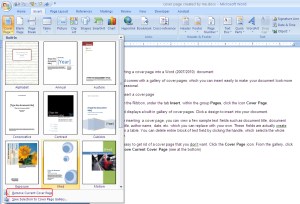
From the Ribbon, under the tab Insert, within the group Pages, click the icon Cover Page.

Word displays a built in gallery of cover pages. Click a design to insert into your document.

After inserting  a cover page, you can view a few sample text fields such as document title, document subtitle, author name, date, etc. which you can replace with your own.

These fields are actually created within a table. You can delete entire block of text field by clicking the table handle, which selects the whole table. Then you can enter your own.

It is easy to get rid of a cover page that you don’t want. Click the Cover Page icon. From the gallery, click Remove Current Cover Page (see at the bottom)

untitled

How to change default line and paragraph spacing in Word 2007?

When you click New (or CTRL + N) to open a new document in Word, it opens a copy of the default template Normal.dot saved in the Template folder. Word follows the naming convention Document1, Document2, etc. for a new document. The line and paragraph spacing in a new document is according to the Normal template. You can change these parameters though from the Styles gallery.

    1. On the Ribbon, under the tab Home, within the group Styles, click the dialog box launcher icon. Word opens the Styles dialog box. See below image.

Untitled 1

  1. On the Styles dialog box, point to Normal and then click the down arrow button on the right. A drop-down menu appears
  2. From the drop-down menu, click Modify. The Modify Styles dialog box appears.
  3. From the Modify Style window, click the Format button (at the left bottom corner) and then select Paragraph. The Paragraph dialog box appears.
  4. From the Paragraph dialog box, under the section Spacing, select values in the fields Before and After to set spacing before and after a paragraph respectively.
  5. For line spacing, select Single from the drop-down list Line Spacing for a single spacing. Select Exactly to specific a value in the field At. See below image

Untitled 2

How to insert Text Fields, Check Boxes, Drop-Down Lists, Combobox, etc. in a Word document to create a Form


Word has this nice feature which enables insertion of text fields, check boxes, drop-down lists, etc. You can use these elements to create a form in Word.

These elements are available under the  tab menu Developer in the Word Ribbon. If you are unable to find this tab in the Ribbon, most likely you need to enable this using the Word Options dialog box.

To enable the Developer tab (Word 2007)

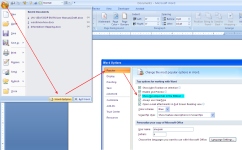
1.   Click the Office button Picture1. A drop-down list appears.

2.   Click the Word Options button from the bottom of the list. Word Options dialog box appears.

3.   On the dialog box, under the category Popular (see on the left hand side), select the option Developer tab in the Ribbon. Now, you can view the Developer tab in the Ribbon. See below  image.
untitled


To insert a legacy check box
1. Click the Developer tab.

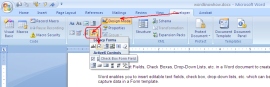
2.  Under the group Controls, click the Legacy Tools button. A drop-down list of icons appears. See below image.

3.  Under the section Legacy Form, click the check box icon as shown in the below image. Word creates a check box at the cursor position. By       default, the checkbox is in design mode (you can see the Design Mode icon being enabled within the Controls group)
untitled

Note:  If you wish, you can remove the shading of the check box by clicking the Form Field Shading icon under Legacy Form.

4.  By the way, you cannot use the checkbox in design mode. To disable design mode, click the Design Mode icon within the Controls group.


Also, you should enforce protection to the document (or form) before you share it with others to capture information.

This step is applicable to all other controls as well.


To enforce protection
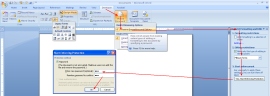
1.  Under the Developer tab, within the group Protect, click icon Protect Document. A drop-down list appears.

2.  From the drop-down menu, click Restrict Formatting and Editing. Restrict Formatting and Editing task pane appears on the right         hand side.

3.  From this dialog box, select option Allow only this type of editing in the document option. A drop-down is enabled. Select Filling in       forms option from the drop-down list. See below image.

4.  Click button Yes, Start Enforcing Protection. The Start Enforcing Protection dialog box appears, which prompts you to enter a                 password.

5.  Enter a password and retype password. Your document is protected and the check box is now clickable.
Untitled 1

Important: Remember that you cannot edit a protected document. If you wish to make changes in the document, you have to remove protection by entering the valid password.


To stop protection

1.   Under the Developer tab, within the group Protect, click Protect Document. The Restrict Formatting and Editing task pane appears.

2.   From the bottom of the dialog box, click the button Stop Protection. Enter valid password to remove protection.


To insert a drop-down list
1.    Under the Developer tab, within the group Controls, click the Drop-Down List icon. A drop-down list appears in the document. See below image.
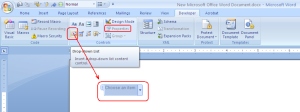
untitled

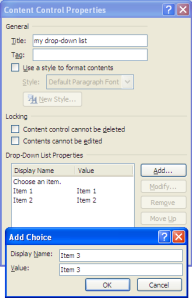
2.   You can see the Properties button being enabled within the Controls group. Click Properties. The Content Control Properties dialog box appears.

3.   In the dialog box, under section General, enter a Title of the drop-down list.

4.   Under section Drop-Down List Properties , click button Add to enter the display name and value for the first list item in the Add Choice dialog box and then click OK. Item is added to the list.

In the similar way, you can keep adding items to the list.

5.   Click the Modify/Remove button to edit/delete list items.

6.   Finally, click OK to close the Content Control Properties dialog box. You can view the drop-down list displays all the list items. See below image.
Untitled

7.  Enforce protection to the document, so that list values cannot be modified.


To insert an ActiveX Control check box

1.   Click the Developer tab.
2.   Under the group Controls, click the Legacy Tools button.
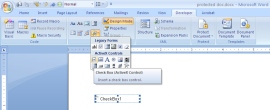
3.   From category ActiveX Controls, click the check box icon. A check box is created at the insertion point. See below image.

You can notice that the Design Mode icon being enabled within the Controls group. This is important to edit the check box properties.

4.   Right-click the check box. From the right-click menu, click CheckBox Object and then click Edit. The check is in edit mode. You can enter        a name of the checkbox.
5.   From the right-click menu, click Properties to control properties of the check box.

6.  Click Design Mode to disable. The check box is now clickable.
 

untitled

Note: The difference between a legacy and ActiveX control check box is that, ActiveX checkbox provides advanced or extended features, i.e. you can write program for it in visual basic to make the check box behave in different ways.


Insert text fields

1.   Click the Developer tab.

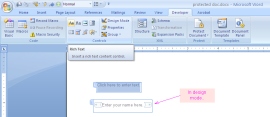
2.   Under the group Controls,  click the icon Rich Text or Text. A text field is created in the document. See below image.

3.   You can change the default text appearing in the text box by enabling the Design Mode button in the Control Group.
untitled


Insert a Combobox

  1. Under the Developer tab, within the group Controls, click the Combobox icon Untitled. A combobox is created at the cursor position.
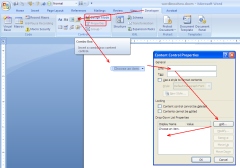
  2. Select the combobox and then click Properties (available within the group Controls. The Content Control Properties dialog box appears.
  3. In the dialog box, under the section General, enter a Title of the combobox.
  4. In the dialog box, under the section Drop-down List Properties, click the Add button. Add Choice dialog box appears.
  5. Enter a display name and value for the first list item. Click OK.
  6. Click Add again to enter a second list item. Click OK. You can keep adding as many item as you need.
  7. Finally, click OK.

The combobox list is populated with the list items. Remember, the combobox should not be in Design Mode to view the list of items. You can find the Design Mode icon within the group Controls . See below image.
untitled


Also See:

https://wordknowhow.wordpress.com/2014/04/03/how-to-create-radio-buttons-option-buttons-in-ms-word/

https://wordknowhow.wordpress.com/2014/04/03/how-to-create-or-add-checkboxes-checkbox-controls-to-your-word-document/

https://wordknowhow.wordpress.com/2014/04/08/how-to-add-a-text-field-in-word/


How to control formatting while copying content from a source to a Word Document

When you copy content from a source file (like Word, Excel, PowerPoint, PDF, webpage, etc.) to a Word document, Word displays the Paste Options icon immediately at the end of the pasted content. See below.

untitled

If you click the Paste Options icon, a small drop-down list appears with the following three formatting options:

1)   Keep Source Formatting
Select “Keep Source Formatting”, if you want to retain formatting of the content source.

2)   Match Destination Formatting
Select “Match Destination Formatting”, if you want the copied text to be formatted to match formatting of the destination Word document.

3)   Keep Text Only
Select “Keep Text Only” option if you want to discard any table, pictures, etc. which are part of your copied text and you want to retain only text. This option is very useful while copying content from the web pages.

Sometimes, Paste Options drop-down list displays a fourth option “Use Destination Style” if there is a conflict of style between source and destination Word documents.

From the Paste Options list, if you click Set Default Paste, Word displays the Advanced options for Cut, Copy and Paste. You can select the default formatting options for different scenarios.

If you find the Paste Options icon annoying, you can disable it by un-selecting the Show Paste Options. See below.

untitled

Word would follow the formatting options configured under the section Cut, Copy and Paste.


How to insert objects into Word by embedding or linking

While inserting a file (such as Word, Excel, PowerPoint, PDF, image, etc.) as an object into a Word document, you can either create a new or use an existing file.

Create a new file and insert as an object

1.    Place the mouse cursor where you want to create the object.

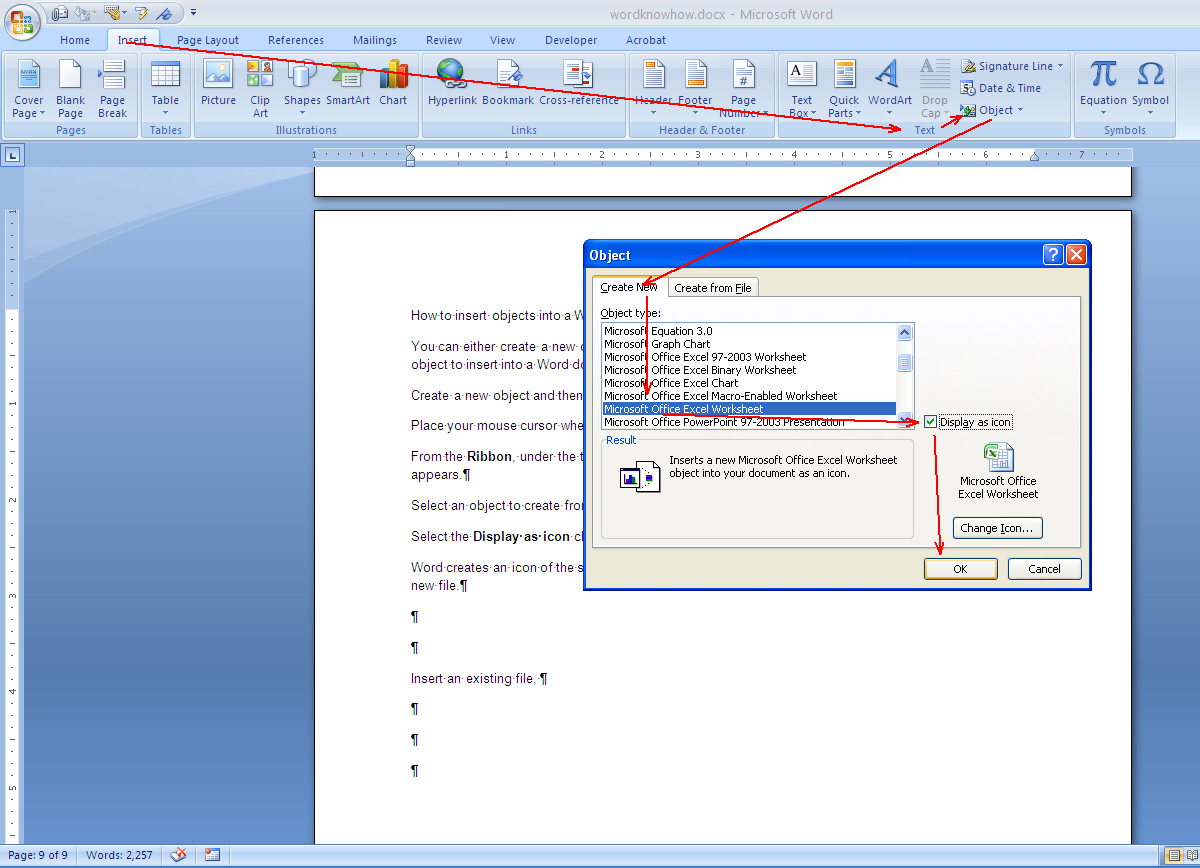
2.    From the Ribbon, under the tab Insert, within the group Text, click Object. The object dialog box appears.

3.    Select an object to create from the Object Type list.

4.    Select the Display as icon check box.

5.    Word creates an icon of the selected Program at the cursor position and opens the program to create a new file.

For example, if you select  object type as “Microsoft Office Excel Worksheet”, an Excel icon is created at the cursor position and then Word opens the Excel program to create a new Excel document.

untitled

Insert an existing file as an object

1.    You can insert an existing file into your document in two different ways: either embed the file or link the file.

2.    Place your mouse cursor where you want to create the object

3.    From the Ribbon, under the tab Insert, within the group Text, click Object. The object dialog box appears.

4.    From the dialog box, click Create from File.

5.    Click the Browse button to locate the file in your system.

6.    Select the Display as icon check box.

7.    The object icon is created at the cursor position. This way you can embed a file into your document.

8.    If you want to link the file, also select the Link to File check box.

Difference between embedding and linking an existing file

If you want to update an embedded file, you have to double-click the object to open the file and then edit. Updating the source file will not update the embedded file.

However, if you are linking an existing file, then changes in the source file will be reflected in the linked file.

How to use the AutoCorrect feature in Word

The AutoCorrect feature in Word saves a lot of time and effort if you use Word as a text editor. If your profession demands you to type a lot on a daily basis, you must have realized power of this feature by now.

In this article, we will discover various usages of AutoCorrect and use them for our advantage.

Locate AutoCorrect and add an AutoCorrect entry

AutoCorrect works relentlessly behind the scene. Try typing “abouta” and then press the spacebar, Word automatically replaces this with “about a”, similarly “hte” with “the”, and there are so many.

This happens because of the default AutoCorrect entries in Word. And, the good news is that you can edit these entries and add your own entries to make your work even faster.

Alternately, you can stop AutoCorrect to work at all (if you really want to do so!).

You can insert an AutoCorrect entry in two different ways (or at least the two ways I know.. 🙂

First Method:

1.     Click the Office button and from the drop-down list, click Word Options. Word Options dialog box appears.

2.    Click the category Proofing from the pane on the left.

3.    From the pane on the right hand side, under the section AutoCorrect options, click the AutoCorrect Options button. The AutoCorrect  dialog box appears.

Tip: Or simply press the key combination Alt+T+A  🙂 This Word 2003 shortcut key still works…I am so used to it.

untitled

4.    By default, Word opens the AutoCorrect tab. This tab contains a few check boxes along with the fields Replace and With.

5.    To add an AutoCorrect entry, enter the correctly spelled word in the Replace field and the misspelled word in the With field.

6.    Click OK.

For example, enter “misspeled” in the Replace field and enter “misspelled” in the With field. Click OK.

To test, type “misspeled” and press spacebar, it will be automatically replaced by “misspelled”. So next time onward, don’t worry about a misspelled “misspeled”.

Another example of AutoCorrect usage:

If you are lazy enough (like me zzzz…) to type “AutoCorrect” every time instead of “autocorrect”, then enter “autocorrect” in the Replace field and “AutoCorrect” in the With field. Click OK.

Second Method:

As we know, if we misspelled a word while typing,  Word underlines the word with a wavy red line.

1.   Right-click the misspelled word

2.   From the right-click menu, under the sub-menu AutoCorrect, select the correctly spelled word from the suggestions.

3.    AutoCorrect automatically saves this as an entry. Now if you type the incorrect word, AutoCorrect will replace this with the word chosen from the suggestions.

If you don’t want AutoCorrect to help you

You can stop it by un-selecting all the check boxes in the AutoCorrect dialog box and then click OK.

Yet another usage of AutoCorrect

I use AutoCorrect to insert standard text paragraphs (that I use repetitively) into my documents using simple keystrokes. This saves me from copying text from one document to another, writing the same content over and over, and so on.

For example, following is the standard copyright text paragraph that we use consistently in our documents with minor changes here and there.

untitled

1.   Select the paragraph and then click Alt + T + A.

2.   The AutoCorrect dialog box appears with the selected text paragraph being copied into the With field.

3.   Enter the shortcut word (may be “copyright”) in the replace field. Now, if you type “copyright” and press the spacebar,  it would be replaced by the standard copyright text paragraph. You can use this technique in many different ways to insert images, logos, tables, etc.

How to add Watermarks and edit Watermarks in Word

Watermarks, as we know, appear in the background of a Word document. Watermarks carry a light shade without interfering the readability of text. These can safeguard your document from tampering. Sometimes, company name, logo, graphics, etc. are also used as Watermarks.


To insert Watermark to your document

  1. On the Ribbon, under the tab Page Layout, within the group Page Background, click the Watermark icon . A drop-down list appears with the subsections Confidential and Disclaimer. These two sections contain the default watermarks, which you can use straightway in your document.
  2. Click on a Watermark to add to your document.

watermark icon


To add a custom Watermark

1.   On the Ribbon, under the tab Page Layout, within the group Page Background, click the Watermark icon. From the bottom of the drop-down list, click Custom Watermarks. The Printed Watermark dialog box appears.

2.    The dialog box provides three options:

a.    No Watermark

Select this option if you do not want to add a Watermark

b.   Picture Watermark

Select this option to add a picture as a Watermark

i.      Click the Select Picture button to browse your system to select a picture.

ii.     Click OK.

                  c.   Text Watermark

Select this option to add any text as your watermark)

i.    Enter the watermark text in the Text field. You may also select font, size, color, diagonal or horizontal layout, etc.

ii.   Click OK.


Editing a Watermark

1.    Firstly, enable the Header/Footer section. To enable the header/footer section, right-click on the extreme top/bottom sections of your document Edit Header/Edit Footer icon appears.

2.    Click the icon to enable the header/footer section (Header and Footer Tools tab is now enabled in the Ribbon).

3.    Now, you can select the Watermark. If it is a text Watermark, select and right-click on the text (right-click only when your mouse pointer changes to this mouse pointer ).

4.    From the right-click menu, click Edit Text. Edit Word Art Text dialog box appears.

5.    On the dialog box, you can modify the font, font size, text style, and the text itself. To delete watermark, select Cut from the right-click menu.

6.    Click OK.


How to use AutoText to draw a table in Word 2007

AutoText could prove to be really handy when it comes to reusing objects across all your documents. You can add any selection to AutoText e.g. a table with a certain style and table header. Later you can draw the same table to documents with just a click of mouse button.

The following procedure enables you to add any selection (table, text, graphics, etc.) to AutoText.

Procedure

Firstly, add the AutoText feature into your Quick Access Toolbar. In Word 2007, you can locate the Quick Access Toolbar on top of the Ribbon menu.

To add the AutoText feature to the Quick Access Toolbar

1.   Click the Office button Picture1. From the drop-down list, click the Option button . The Word Option dialog box appears.

2.   On the dialog box, click Customize from the left hand side menu. On the right hand side, Customize the Quick Access Toolbar and keyboard shortcut pane appears. See below image.

3.   On this pane, select AutoText under the category Popular Commands and then click the Add button to add it to the Customize Quick Access Toolbar list on the right.

word options

4.   Click OK. You can view the AutoText icon being added to the Quick Access Toolbar.

quick access toolbar

Let us create a table and add it as a selection to AutoText

1.   Select the table and click the AutoText icon from the quick access toolbar.

2.   Click the Save Selection to AutoText Gallery option available at the  bottom of the AutoText menu. See below image. Create New Building Block dialog box appears.

3.  On the dialog box, enter a Name for the table and select the Gallery option as AutoText.

save selection to autotext gallery

4.   Click OK.

You can view the table being added as an entry into the AutoText list. To redraw the table, click the table from AutoText list.

table added to autotext